

Identity Verification
The Eclipse Foundation offers committers an optional way to verify their identity against a government-issued identity document. Committers who complete the process earn a verified checkmark on their Eclipse Foundation account profile, providing an additional way to demonstrate that the name displayed on their account has been verified.
Identity verification is one more trust mechanism for the open source software supply chain, offered for those who want it. It is entirely voluntary and is designed to preserve the open and transparent participation that defines Eclipse Foundation projects.
Important: To be clear about the scope of the program, identity verification is not:
- mandatory — it is a voluntary, opt-in program, and there is no plan to make it mandatory;
- age verification — it does not capture or assert your age;
- a change to how projects are governed — it does not affect project roles, elections, or decision making; and
- a change to how contributors participate — you can continue to contribute exactly as you do today, whether or not you choose to verify your identity.
For background on why the program was introduced, see the announcement on the Eclipse Foundation blog.
How It Works
The Eclipse Foundation partners with iDenfy, an identity verification provider based in the European Union, to perform the verification on its behalf.
When you start a verification session, iDenfy guides you through:
- capturing images of a valid, government-issued identity document (for example, a passport, national identity card, or driving licence); and
- taking a photo of your face so that it can be matched against the document.
These images are processed by iDenfy and are not stored by the Eclipse Foundation. After a successful verification, the Foundation receives and retains only a validation certificate. This certificate contains a small set of validated fields — your first name, last name, and country — together with a digital signature that allows the Foundation to confirm that the certificate is authentic.
Note: The program was designed with data minimization in mind. iDenfy retains the document and the images that you submit for a limited period (90 days) before deleting them, and the Eclipse Foundation never receives a copy of them. For more information about how the Eclipse Foundation handles personal data, see the Eclipse Foundation Privacy Policy.
Once verification succeeds, the verified checkmark appears on your account profile.
Verifying Your Identity
You start identity verification from your Eclipse Foundation account page:
- Sign in to your Eclipse Foundation account.
- Locate the Identity Verification section of your account page.
- Start a new verification session. You are redirected to iDenfy to complete the process.
- Follow iDenfy’s on-screen instructions to select your document type and country, capture your identity document, and take a photo of your face.
- When iDenfy has finished processing your submission, you are returned to your account page. After a successful verification, the verified checkmark is shown on your profile.
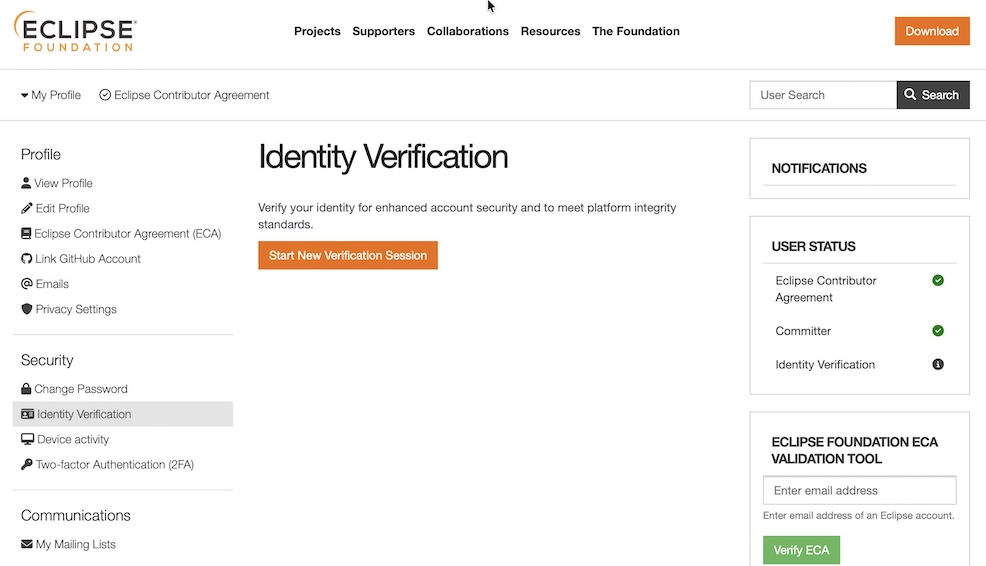
Tip: Make sure that your identity document is valid (not expired) and undamaged, and that you are in a well-lit place before you begin. See the frequently asked questions for the kinds of documents and the countries that are supported.
Repeating a Verification
You may need to verify your identity again — for example, after a change to your legal name, or to refresh a verification that is no longer current.
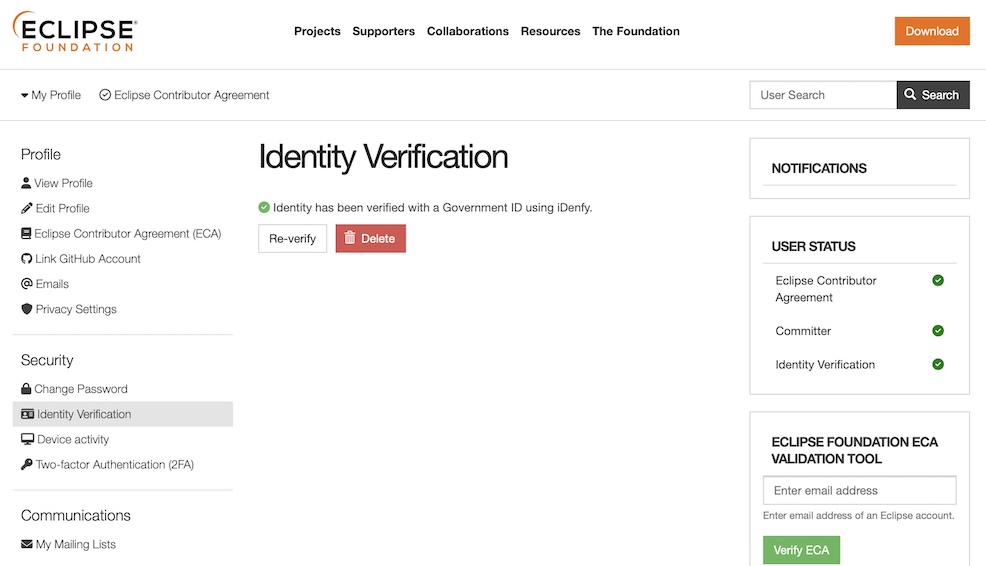
Once you have a verified status, the Identity Verification section of your account page shows a Re-verify button next to a Delete button:
- Sign in to your Eclipse Foundation account and locate the Identity Verification section.
- Select Re-verify. Your current verified checkmark is removed immediately, and you are redirected to iDenfy to start a new verification session — the same process described in Verifying Your Identity.
- Follow iDenfy’s on-screen instructions to complete the new session. After a successful verification, the verified checkmark is shown again and the new validation certificate replaces the previous one.
Removing Your Verified Status
Because identity verification is optional, you can remove the verified status from your account at any time.
- Sign in to your Eclipse Foundation account and locate the Identity Verification section.
- Select Delete. Your verified checkmark is removed from your profile immediately, and the validation certificate held by the Eclipse Foundation is deleted.
There is no confirmation prompt: the verified status and the certificate are removed as soon as you select Delete. Your account returns to the unverified state. Removing your verified status has no effect on project roles or on how you contribute, and you can start a new verification later if you wish.
Frequently Asked Questions
No. Identity verification is entirely optional. You can be — and remain — a committer without ever verifying your identity, and there is no plan to make it mandatory.
No. The program verifies that your account name matches a government-issued identity document. It does not capture or assert your age.
No. Identity verification has no effect on project roles, elections, or how you contribute to a project. It simply adds a verified checkmark to your account profile.
You can use a valid, government-issued identity document that is supported by iDenfy, such as a passport, a national identity card, a driving licence, or a residence permit. The document must not be expired or physically damaged. For the full list of accepted document types, see iDenfy’s supported documents reference.
iDenfy supports identity documents issued by the large majority of countries and territories worldwide. To check whether your country and document type are covered, consult iDenfy’s documents and countries documentation.
iDenfy is an identity verification provider based in the European Union. The Eclipse Foundation uses iDenfy to process the images of your identity document and of your face. Those images are handled by iDenfy and are not stored by the Eclipse Foundation.
No. The Eclipse Foundation does not receive or store the images that you submit. It retains only the validation certificate returned after a successful verification, which contains your validated first name, last name, and country, along with a digital signature. See How It Works for details.
iDenfy retains the document and the images that you submit for a limited period (90 days) before deleting them. The Eclipse Foundation keeps only the validation certificate.
A verified checkmark is shown on your Eclipse Foundation account profile.
Yes. Because the program is optional, you can remove your verified status. See Removing Your Verified Status.
Questions, feedback, and concerns about the identity verification program are welcome in the Eclipse CSI GitHub Discussions or can be sent to the EMO.